English
Online WebP Resizer vs Desktop App: Speed and Output Quality Comparison
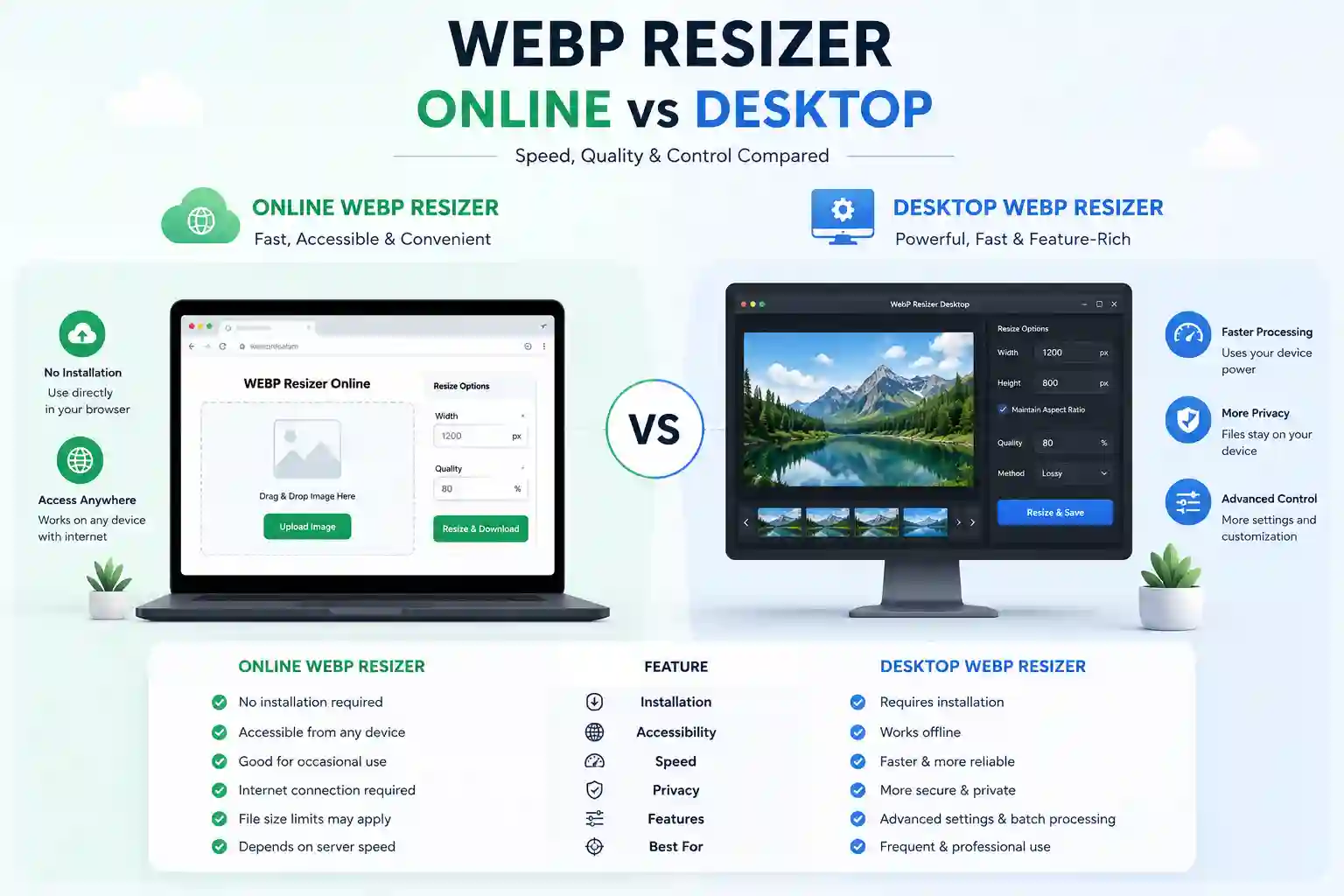
Quick Answer
The "online vs desktop" framing is misleading, because online tools actually split into two technically different categories: server-upload tools (you upload a file, a remote server processes it, you download the result) and browser-native/WebAssembly tools (the resize and re-encode happen locally on your device, inside the browser, using real codec libraries compiled to WebAssembly). Desktop apps are a third category with their own trade-offs. Speed depends more on which of these three categories you're using — and how many images you're processing — than on "online" versus "desktop" as a label. For a handful of images, browser-based WASM tools like Squoosh match desktop-app quality with zero upload step. For large batches, dedicated desktop or CLI tools win decisively on throughput. Server-upload tools are the slowest and least private option of the three, but remain useful for cross-device convenience.
Why "Online vs Desktop" Isn't the Real Question
Most comparison articles on this topic treat "online resizer" as a single category and pit it against "desktop app" as if there were only two options. That framing hides the variable that actually determines both speed and quality: where the pixel processing happens, and what code does it.
There are three distinct architectures in play, and knowing which one a given tool uses tells you more about its speed and quality ceiling than its marketing page does.
| Category | Where Processing Happens | Example Tools | Codec Used |
|---|---|---|---|
| Server-upload online tool | Remote server, after your file upload | iLoveIMG, ResizePixel, most "upload and resize" sites | Usually ImageMagick, libvips, or a custom server pipeline |
| Browser-native / WebAssembly tool | Locally, inside your browser tab | Squoosh, jSquash-based tools, Compresto | Real native codecs (libwebp, MozJPEG) compiled to WebAssembly |
| Desktop application | Locally, as a native installed program | Photoshop, GIMP, XnConvert, FastStone, CLI tools (ImageMagick, libvips, cwebp) | Native platform binaries, no browser sandbox |
The first two are both "online" by the common meaning of the term (you access them through a URL, no installation), but they have almost nothing in common technically. One uploads your file to a stranger's server; the other never leaves your device. Conflating them is why so many comparison articles give confusing, contradictory advice about speed and privacy.
Speed: What Actually Determines It
Server-Upload Tools
Speed here is bottlenecked by three sequential steps, not one: upload time (dependent on your outbound connection speed and file size), server queue/processing time, and download time. On a slow or congested connection, the upload and download legs can take longer than the actual resize operation. This is the category where "speed" is really "network speed plus a small amount of server compute," which is why testers report wildly different results depending on their connection.
Browser-Native (WebAssembly) Tools
There's no upload step at all. The image is decoded, resized, and re-encoded using WebAssembly modules running at near-native speed directly in your browser's sandbox. Multiple technical write-ups on Squoosh's architecture confirm it compiles real C/C++ codec libraries — including libwebp for WebP and MozJPEG for JPEG — to WebAssembly via Emscripten, which is why its output quality is close to what a native desktop encoder produces, not a simplified browser approximation. The practical speed ceiling here is your device's CPU, not your network.
Be careful not to confuse this category with tools that only use the plain Canvas API (canvas.toBlob() / canvas.toDataURL()) without WebAssembly codecs underneath. Canvas-based resizing is also local and fast, but it relies on the browser's own built-in encoder, and quality is not guaranteed to be identical across browsers. A long-standing Mozilla bug report documented that Firefox's drawImage() resize quality lagged noticeably behind Chrome's, with Chrome using smoother interpolation while older Firefox versions produced harder, less smooth edges.
Desktop Applications
For single images, desktop apps and browser-native WASM tools perform comparably, since both are running local compute with no network dependency. Where desktop apps pull decisively ahead is batch throughput. Command-line tools like ImageMagick and libvips, or GUI batch features in GIMP (via Script-Fu or the BIMP plugin) and Photoshop (via Actions), can process thousands of files in a single unattended run, something no browser tab is well suited for at scale. Developer-oriented round-ups consistently point to this as the deciding factor for large jobs — automating overnight batch runs of 10,000+ images is described as a realistic desktop/CLI workflow.
Speed Comparison Table
| Scenario | Fastest Category | Why |
|---|---|---|
| Single image, casual use | Browser-native WASM tool | No install, no upload, near-native codec speed |
| 5–20 images, one session | Browser-native WASM or desktop app | Both avoid network bottleneck; desktop wins if batch UI is needed |
| Hundreds to thousands of images | Desktop app / CLI | True batch processing, unattended overnight runs, no browser tab memory limits |
| Cross-device, no software install | Server-upload or browser-native tool | Works on locked-down machines; browser-native is faster if WASM is available |
| Slow or metered internet connection | Browser-native WASM or desktop app | Neither depends on upload bandwidth |
Output Quality: The Codec Is What Matters, Not the Platform
This is the section most competing articles get wrong by assuming "online = worse quality, desktop = better quality." That's not accurate. Quality is determined by which codec performs the resize and re-encode, not by whether the tool runs in a browser tab or as an installed application.
The Codec Hierarchy
- Native codec libraries (libwebp for WebP, MozJPEG for JPEG, libvips or ImageMagick's internal encoders) — whether invoked from a desktop app, a CLI, or compiled to WebAssembly and run in a browser, these produce essentially the same output quality at the same quality setting, because it's the same underlying code.
- Browser-built-in Canvas encoders — vary by browser and version. Testing referenced in browser compression write-ups notes different encoders can differ by roughly 5–10% in output size at the same nominal quality setting.
- Server-side pipelines using outdated or poorly configured encoder settings — some server-upload tools use older encoder versions or conservative default settings tuned for compatibility over quality; this varies enormously by provider.
Resampling Algorithm Matters as Much as the Encoder: Quality differences aren't only about the final compression step — the interpolation algorithm used during the resize itself has a large visible effect, arguably larger than small differences between WebP encoder implementations. Nearest-neighbor produces blocky results; bilinear is fast but blurs detail; bicubic and Lanczos preserve edge sharpness better but cost more compute. Desktop tools and CLI utilities typically expose this choice directly, (GIMPs Script-Fu batch scripts, for instance, support switching to a sharper INTERPOLATION-HYPER mode for product photography, as documented in GIMP CLI batch-resize workflows), while many simple online tools hide this choice entirely and apply a fixed default — which is fine for casual use but a real limitation if you need control over sharpness for print or detailed product photography.
Color Space and Metadata: Where Online Tools Most Often Fall Short
This is an area genuinely underserved by online tools, browser-based or otherwise:
- Canvas-based browser tools operate in sRGB by default. If your source image uses a wider color space like Adobe RGB or Display P3, colors can shift during processing, a limitation noted directly in browser image-compression technical guides.
- ICC color profile management — assigning, converting, or preserving an embedded ICC profile — is a feature desktop tools like GIMP handle explicitly through dedicated color-management dialogs. Most lightweight online resizers don't expose this control at all; they either strip the profile or silently convert to sRGB.
- EXIF/IPTC metadata is inconsistently handled across all three categories. Even GIMP, despite being a full desktop application, doesn't natively batch-edit EXIF/IPTC/XMP metadata without a separate plugin. Don't assume "desktop" automatically means better metadata handling — verify per tool.
Privacy and Security: The Category That Matters Most
This is arguably the single most important differentiator competing articles underweight. Server-upload tools send your file to a third-party server. For public marketing images this is a non-issue. For unreleased product photography, client work under NDA, medical images, legal documents, or anything with a confidentiality obligation, this is a real risk surface. Browser-native WebAssembly tools process the file entirely on-device; the image data never leaves your machine. Desktop applications are local by definition, with the same "never leaves your device" guarantee — though note that plenty of "desktop apps" are actually thin wrappers that upload to a cloud backend, so installed-application status alone doesn't guarantee local processing either.
Real-World Scenarios
- Blogger resizing hero image: A browser-native WASM tool like Squoosh is the fastest and highest-quality option.
- E-commerce team, 3,000 photos: Desktop/CLI tooling wins decisively.
- Agency under NDA: Privacy is the deciding factor; use a browser-native WASM tool or genuinely local desktop software.
- Locked-down corporate laptop: A browser-native WASM tool is the best fit.
- Photographer requiring exact color reproduction: Desktop software with real ICC profile management (GIMP, Photoshop) is necessary.
- Developer building an automated pipeline: This is a CLI/server-side tooling decision (libvips, Sharp, ImageMagick).
Decision Framework
- How many images? 1–20 → Browser-native WASM tool or simple desktop app. 20+ → Desktop app or CLI batch tool.
- Is the image sensitive/NDA? Yes → Rule out server-upload tools entirely. Use browser-native WASM (verify client-side) or local desktop software.
- Need precise control over color/ICC profiles? Yes → Desktop software with explicit color management.
- Need to preserve/edit EXIF/IPTC metadata? Yes → Verify specific tool support; don't assume based on category.
Quick Checklist Before Choosing a Tool
- Confirm whether an "online" tool is server-upload or browser-native/WASM before trusting it with sensitive images.
- For batches over ~20 images, default to a desktop or CLI tool.
- For color-critical work, use desktop software with ICC profile controls.
- Don't assume a Canvas-based browser tool matches a WebAssembly-codec tool in quality — check what's under the hood.
- Verify metadata handling per tool rather than per category.
Common Mistakes
- Assuming all "online" tools are equally private.
- Judging quality by "online vs desktop" instead of by codec.
- Using a browser tab for a 2,000-image batch job.
- Ignoring color space shifts on wide-gamut source images.
- Trusting "desktop app" as an automatic privacy guarantee.
Frequently Asked Questions
Is a browser-based image resizer actually as good as a desktop app?
When the browser tool uses real WebAssembly-compiled codecs, output quality is effectively equivalent to a desktop app using the same codec.Why do some online resizers feel slow even on fast internet?
If server-upload based, speed depends on upload/download bandwidth and server queue time.Does resizing in a browser tab use my device's CPU?
Browser-native/WASM tools use your CPU; server-upload tools use a remote server's CPU.Can I tell whether an online tool is server-upload without reading source?
Yes: disconnect internet after page load; if it still works, it is local.Are desktop batch tools always faster for bulk?
For large batches, yes — they are built for unattended, multi-threaded processing.Does PNG resizing follow the same quality logic?
Not entirely. PNG is lossless, so resizing file size reduction comes from dimensions, color depth reduction, or converting to lossy.Is AVIF support consistent across online tools?
No, AVIF encoding reliability varies by browser.Do I lose EXIF orientation data online?
Often, yes, especially with Canvas-based tools.Is it safe to use free server-upload tools for casual images?
Generally yes, for public marketing images.Which category gives the most control over resampling?
Desktop and CLI tools almost always expose this choice explicitly.
Also Read: