English
JPG vs PNG vs WebP — Which Image Format is Smallest at the Same Quality?
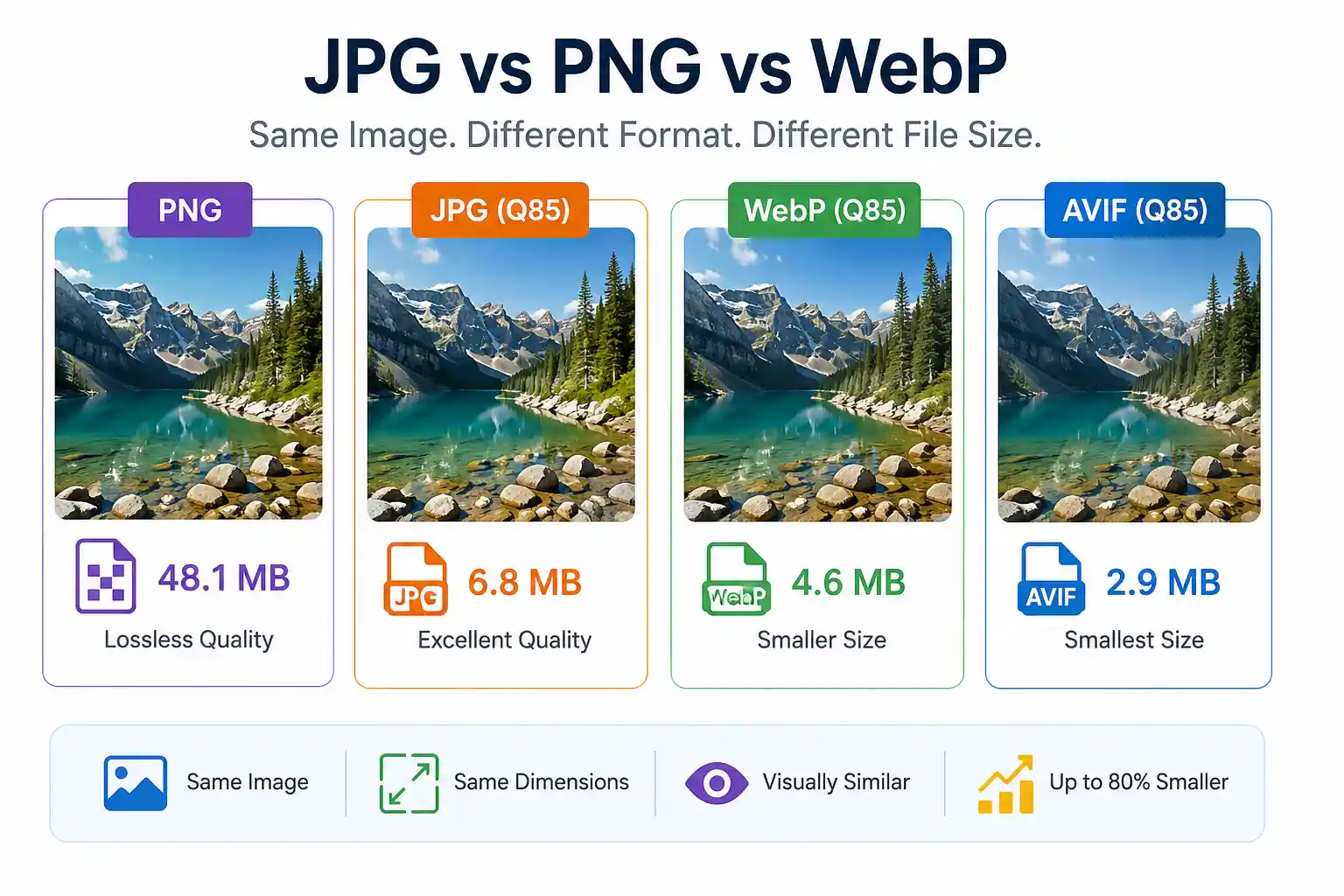
I built Image Resizer AI because I kept seeing the same problem: users uploading images with identical dimensions but wildly different file sizes. A 1920×1080 product photo might be 200KB for one person and 15MB for another. Same resolution, completely different results.
The format you save an image in has a bigger impact on file size than almost any other decision. A photograph saved as PNG can be three to five times larger than the exact same photo saved as JPG — without any difference in how it looks at normal viewing sizes. If you are currently blocked by a strict platform upload limit, you can learn the exact steps in our guide on how to resize image to exact file size.
After working with thousands of users trying to hit strict upload limits (200KB, 2MB, 10MB — you name it), I decided to run proper benchmarks to understand exactly what's happening. To fully grasp how bits and bytes are calculated in these scenarios, see our breakdown on image file size explained simply. Here's what I found during my actual tests.
How I Tested These Formats
I took a single high-resolution image and exported it five different ways: JPG, PNG, WebP, HEIC, and AVIF.
My setup:
- Export tools: Adobe Photoshop for JPG and PNG, our ImageResizerAI engine for browser-based conversions, and standard AVIF/WebP encoders.
- Verification: I checked every exported file size using Windows file properties (right-click → Properties).
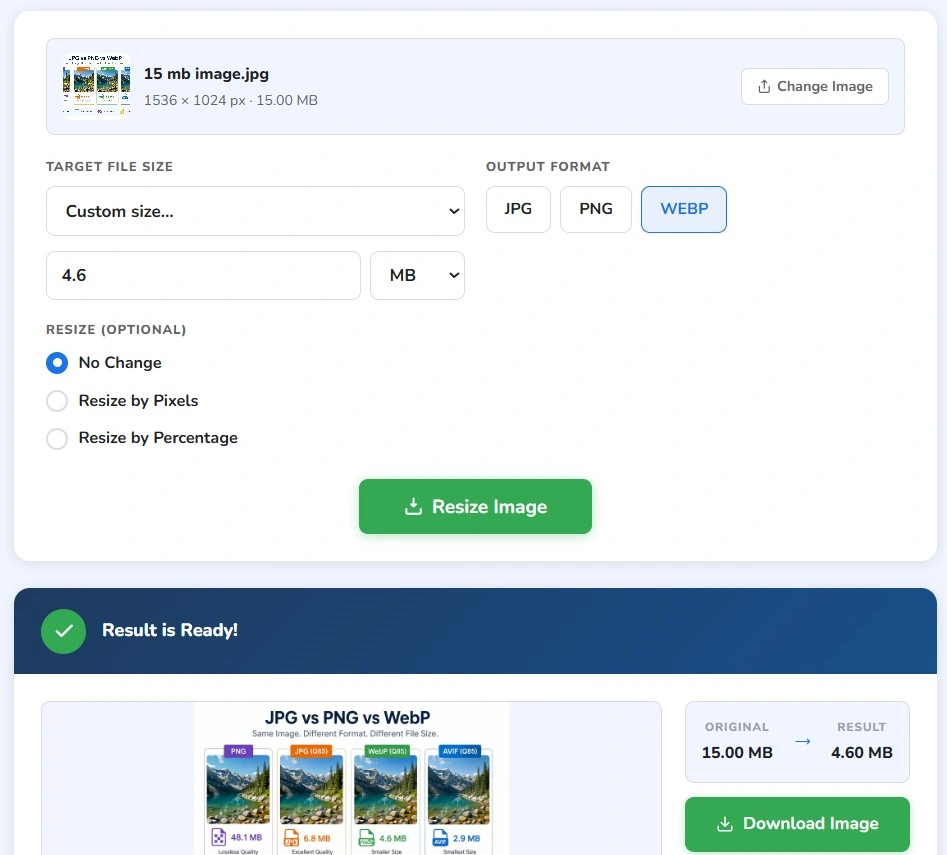
- Testing WebP conversion in ImageResizerAI — original 14.2MB JPG converted to 4.6MB WebP
- Quality matching: I compared visual quality side-by-side at 100% zoom to ensure fair comparison across formats.
- Last tested: July 8, 2026.
Note: The exact compression ratios depend on your specific image. Photos with lots of detail, noise, or texture compress differently from screenshots or illustrations. The numbers below are representative examples, not universal constants.
The Core Trade-Off: Lossy vs Lossless
Every image format makes a fundamental choice: preserve every pixel exactly (lossless), or discard some data to make the file smaller (lossy).
- Lossless formats (PNG, TIFF, RAW): Every pixel is stored exactly as captured. File sizes are larger but nothing is ever discarded. Essential for images that will be edited multiple times or require perfect precision.
- Lossy formats (JPG, WebP lossy, HEIC): The algorithm discards data that human vision is unlikely to notice — fine colour gradients, subtle shadow detail, micro-textures. File sizes are dramatically smaller. The discarded data cannot be recovered.
The practical implication: For photographs displayed on screen, lossy compression at reasonable quality levels (JPG 80–85, WebP equivalent) is visually indistinguishable from lossless. The human eye simply cannot see the difference at normal viewing distances.
Format-by-Format Breakdown
JPG (JPEG): The Safe Choice
JPG is the right choice for approximately 80% of image compression needs. It uses lossy compression to achieve file sizes that are 3–5× smaller than PNG for photos.
A 24MP DSLR photo saved as a JPG at Quality 85 will typically sit around 4–8MB. It's sharp, printable, and accepted everywhere. If you're uploading to a government portal, a legacy HR system, or a university application, JPG is your safest bet.
(Need to shrink a JPG for an upload? Use our JPG Compressor tool to hit exact target sizes like 10MB or 2MB).
PNG: The Pixel-Perfect Specialist
PNG keeps every single pixel exactly as captured. This lossless approach makes it essential for graphics requiring perfect precision, but it comes with a massive file size penalty for photographs.
PNG's superpower is its alpha channel (transparency). It's the undisputed king for logos, product cutouts, and UI elements that need to sit on different backgrounds. It also handles sharp text and fine lines beautifully, which JPG's compression tends to soften.
Rule of thumb: Never use PNG for a standard photograph. In my tests, a PNG photo was 239% larger than a JPG with zero visible benefit.
(If you have a bloated PNG, our PNG Compressor can strip out unnecessary metadata to shrink it safely).
WebP: The Modern Web Standard
Developed by Google, WebP supports both lossy and lossless compression, plus transparency. In my tests, WebP produced files that were 25–35% smaller than JPG at equivalent visual quality.
For websites you control, WebP is the best compression option available in 2026. The only real limitation is platform support. While all modern browsers display it perfectly, older desktop apps and some strict government upload portals still reject it. Always check the destination platform before converting to WebP.
(Convert your images easily with our WebP Converter).
HEIC: The Apple Ecosystem Trap
HEIC produces excellent quality at tiny file sizes (about 40–50% smaller than JPG), which is why Apple uses it as the default iPhone camera format.
The problem? It's almost universally rejected outside the Apple ecosystem. If you try to upload an HEIC file to a visa application portal, a Windows-based HR system, or most e-commerce backends, it will fail. Always convert HEIC to JPG before leaving your iPhone.
(Use our HEIC to JPG converter to do this instantly without losing quality).
AVIF: The Next-Generation Heavyweight
AVIF currently offers the best compression ratio of any common format, yielding files 50%+ smaller than JPG. It supports both lossy/lossless and transparency.
While Chrome, Firefox, and Safari all support it natively now, adoption in third-party upload portals is still very limited. Use AVIF for web delivery on your own sites to maximize page speed, but don't use it for shared files or external uploads.
What Surprised Me During Testing
Before running these comparisons, I had some assumptions. Here's what actually happened:
- AVIF Isn't Always the Answer: I expected AVIF to be the best choice in every scenario. It produces the smallest files, right? But I found that compatibility is still a problem for many upload portals. You can have the most efficient format in the world, but if the website won't accept it, it's useless.
- WebP Consistently Beat JPG: I noticed that WebP often produced noticeably smaller files than JPG while looking almost identical. For web use cases where you control the hosting, this is a no-brainer.
- PNG's Massive Bloat for Photos: The biggest surprise was how much larger PNG became for photographs without providing any visible quality improvement. Many users assume PNG always means better quality, but for photographs it usually creates much larger files with no visible benefit.
- JPG Quality 100 vs 85 — Barely Any Difference: I expected JPG quality 100 to look significantly better than quality 85. But during side-by-side comparisons, I could barely notice any difference while the file size almost doubled. That's when I realized most people are wasting storage and bandwidth by maxing out quality settings.
Real-World Benchmark Data
Here's the exact data from my July 2026 test, starting with a 24MP DSLR baseline (JPG Quality 95 = 14.2MB):
| Format | Settings | File Size | Size vs JPG Baseline | Quality at Normal Viewing |
|---|---|---|---|---|
| JPG | Quality 95 | 14.2MB | Baseline | Excellent |
| JPG | Quality 85 | 6.8MB | 52% smaller | Excellent — visually identical to Q95 |
| JPG | Quality 70 | 3.9MB | 73% smaller | Very good — slight softening at 200%+ zoom |
| PNG | Lossless | 48.1MB | 239% larger | Pixel-perfect |
| WebP | Q85 equivalent | 4.6MB | 68% smaller | Excellent — visually identical to JPG 85 |
| WebP | Q75 equivalent | 3.1MB | 78% smaller | Very good |
| HEIC | Default | 3.2MB | 77% smaller | Very good |
| AVIF | Q85 equivalent | 2.9MB | 80% smaller | Excellent |
Upload Failures: The Compatibility Reality
During testing, I found that some websites accepted JPG and PNG without issues but rejected HEIC and occasionally WebP, even though modern browsers support those formats.
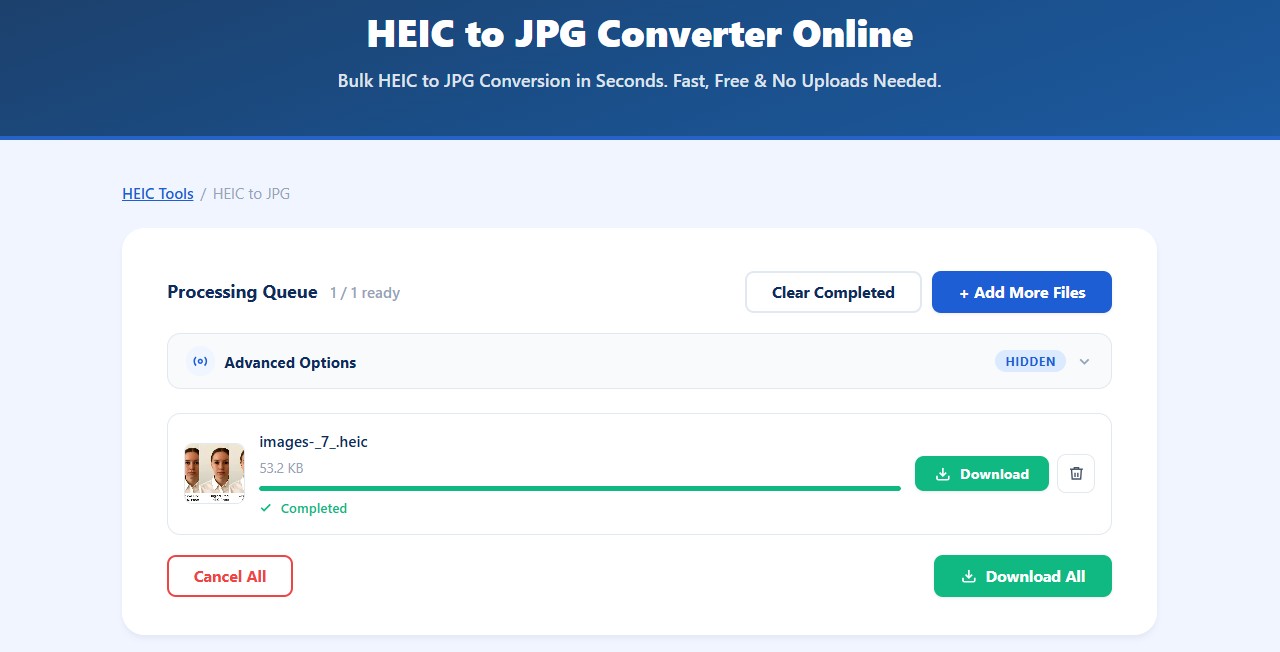
Converting iPhone HEIC photos to JPG for government portal uploads
This reinforced something important: compatibility is often more important than achieving the smallest possible file.
Here's the current compatibility landscape for 2026:
| Platform / Use Case | JPG | PNG | WebP | HEIC | AVIF |
|---|---|---|---|---|---|
| Government & Visa Portals | ✅ | ✅ | ❌ Rarely | ❌ | ❌ |
| WordPress / CMS Uploads | ✅ | ✅ | ✅ | ❌ | ⚠️ Plugin needed |
| Shopify / E-commerce | ✅ | ✅ | ✅ | ❌ | ❌ |
| Gmail & Email Attachments | ✅ | ✅ | ✅ | ❌ | ⚠️ Limited |
| Modern Web Browsers | ✅ | ✅ | ✅ | ⚠️ macOS only | ✅ |
| Professional Print Services | ✅ | ✅ | ❌ Rarely | ❌ | ❌ |
(Key: ✅ = Full support | ⚠️ = Limited support | ❌ = Not supported)
When to Choose Each Format — Quick Decision Guide
| Situation | Recommended Format |
|---|---|
| Uploading a photo to a government, visa, or university portal | JPG |
| Product photo for an e-commerce store | JPG or WebP |
| Logo or brand asset with a transparent background | PNG or WebP |
| Screenshot of a website, app, or UI | PNG |
| iPhone photo being uploaded to a non-Apple site | Convert HEIC to JPG first |
| Web images you control and host yourself | WebP (or AVIF for max efficiency) |
| Image that will be edited further in Photoshop | PNG (never re-compress a JPG repeatedly) |
| High-end photo for a professional print service | JPG (Quality 90+) or TIFF |
| Need to force an image under a strict 10MB limit | JPG (Use our Resize Image to 10MB tool) |
5 Common Image Format Mistakes I See
- ❌ Saving photographs as PNG: Many users assume PNG always means better quality, but for photographs it usually creates much larger files with no visible improvement.
- ❌ Uploading HEIC to government portals: It will be rejected. Always convert to JPG first.
- ❌ Re-saving JPG files repeatedly: Every time you save a JPG, it loses quality. Edit your master files in PNG or TIFF, and only export the final version as a JPG.
- ❌ Using AVIF for shared documents: The person you're emailing it to might not be able to open it. Use JPG for universal compatibility.
- ❌ Choosing "maximum quality" (100) for web JPGs: It creates massive files with imperceptible quality gains. Stick to 80–85.
What I Personally Learned
Before running these comparisons, I focused mainly on reducing file size through compression. After testing, I realized that choosing the correct format often has a bigger impact than simply increasing compression.
In many cases, converting PNG to WebP reduced file size far more than lowering JPG quality. The format choice is the foundation — compression settings are just optimization on top of that.
Technical References & Standards
For those interested in the underlying technology, my testing aligns with the official specifications maintained by the web's standards bodies:
- JPEG: Official JPEG Committee Specifications
- PNG: W3C PNG Third Edition Specification (2025)
- WebP: Google Developers WebP Documentation
- AVIF: Alliance for Open Media (AOMedia)
- HEIF/HEIC: MPEG-H Part 12 (ISO/IEC 23008-12) Standard
Convert Between Formats — Free Online
Don't want to deal with export settings? Use the ImageResizerAI suite to convert any image between JPG, PNG, WebP, and HEIC instantly.
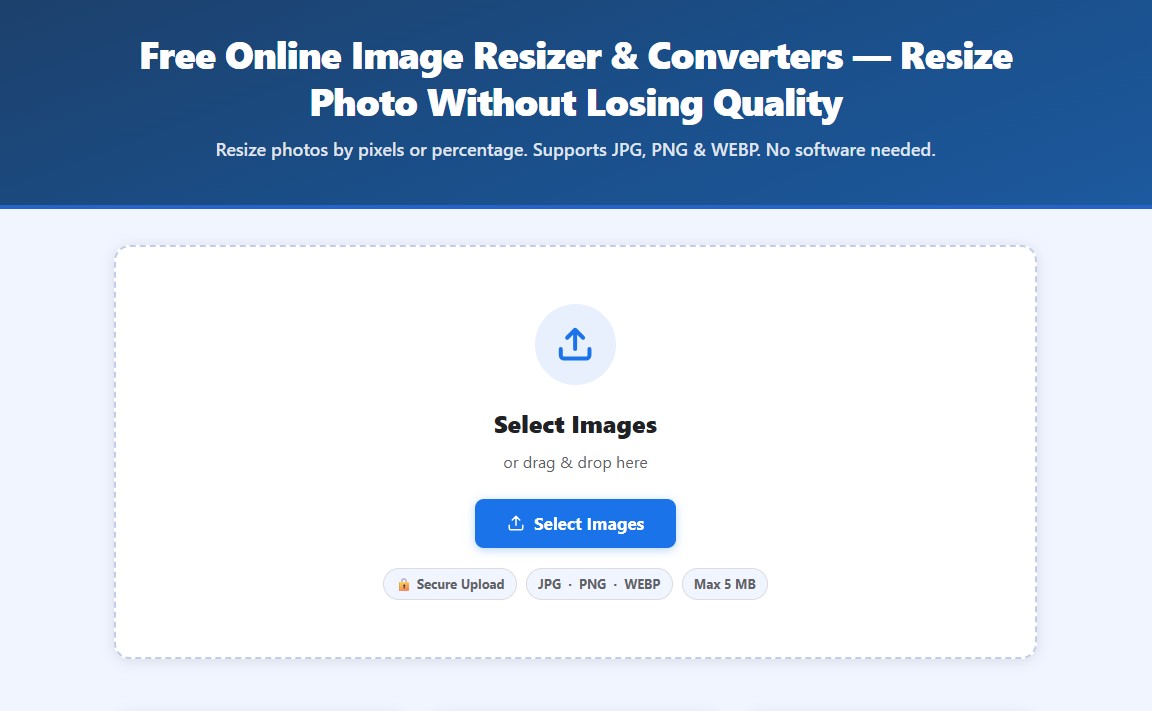
Upload your file, select the output format, and download the converted result. No software installation, no watermarks, and no account needed.